Settings
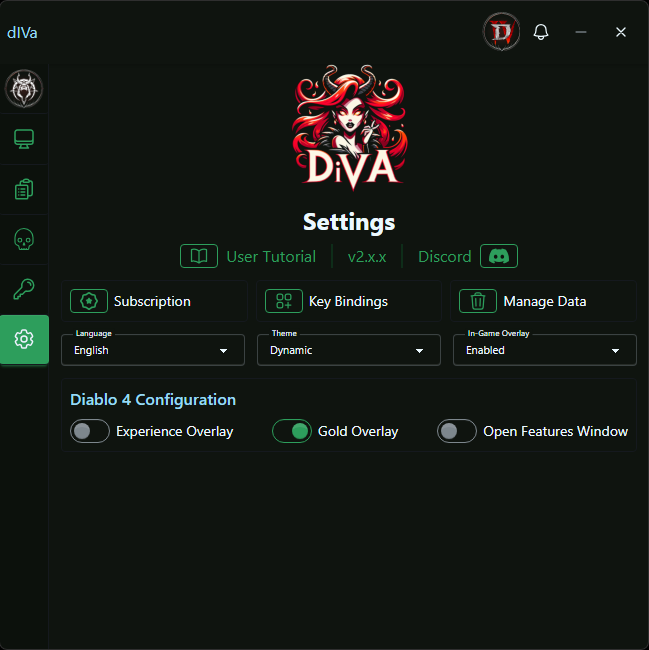
The Settings screen is the central place for app preferences, subscription, and game configuration.
Open it from the gear icon in the dashboard sidebar.
Functionality
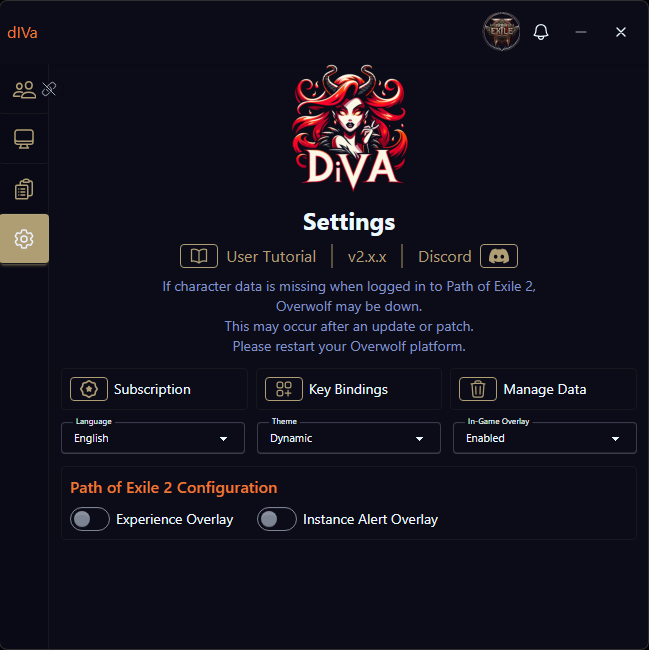
The settings screen dynamically adjusts based on the game you are logged into.
- User Tutorial: Link to this guide.
- Version: Current dIVa version.
- Discord: Community server link.
- Character warning: Shown when no character is detected for the active game
(often related to Overwolf game event status).
Quick Actions
Three action cards at the top open focused areas. Each opens a view within Settings (use Settings at the bottom to return).
| Card | Purpose |
|---|---|
| Subscription | Manage your plan through Tebex. |
| Key Bindings | Configure the global Bring dIVa to Front hotkey. See Key Bindings. |
| Manage Data | Reset preferences, manage Best Run data, and delete stored data with granular control. See Manage Data. |
General Options
- Language: English, Deutsch, 한국어, Español, Português, Français.
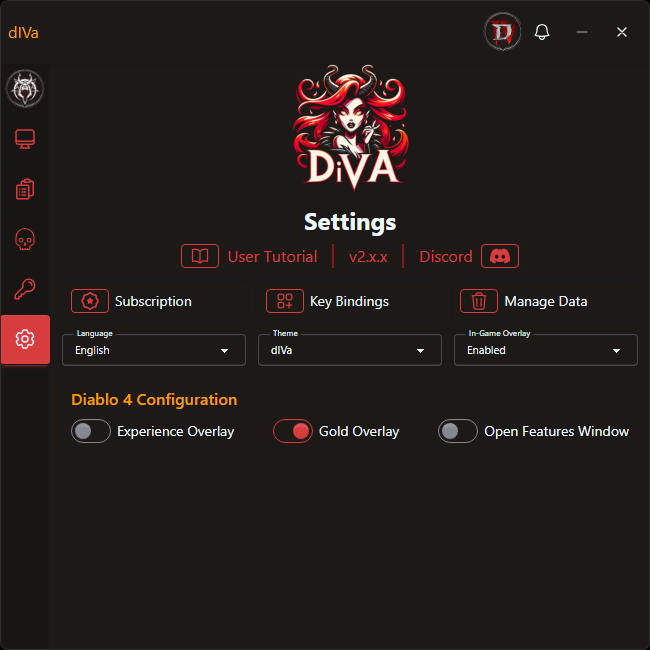
- Theme: Dynamic (follows active game) or a fixed game theme. See Themes.
- In-Game Sidebar Overlay: Controls whether the compact In-Game Overlay strip appears while you are in-game.
- Auto-detect: Shows the strip on a single monitor; hides it when multiple monitors are detected.
- Enabled: Always shows the In-Game Overlay in-game.
- Disabled: Hides the In-Game Overlay; use the dashboard sidebar only.
Game Configuration
Shown for the game you are logged into (for example, Diablo 4 Configuration):
- Overlay options (Experience Overlay, Gold Overlay, Instance Alert Overlay, and others depending on the game): Default overlay placement for that feature. Toggles in Settings stay aligned when you open or close features from the dashboard sidebar or In-Game Overlay.
- Open Features Window: When enabled, Inventory and Tier List Catalog open in a separate feature window instead of the dashboard pane.
Themes
Customize your dIVa experience with game-specific themes that match your favorite aRPG.
- Dynamic Theme Switching: Themes automatically adjust based on your active game, or manually select your preferred theme in the settings dropdown.
- Game-Specific Themes:
- dIVa: The default theme, fiery orange and red darkness
- Active for Diablo II: Resurrected
- Vessel of Hatred: Embrace the new jungle green aesthetics with the Diablo IV expansion theme
- Active for Diablo IV
- Path of Exile: Experience the gritty midnight blue atmosphere of Wraeclast
- Active for Path of Exile 2
- dIVa: The default theme, fiery orange and red darkness
- Enhanced Visuals: Revamped UI elements, icons, and color schemes to match each game's unique aesthetic