Manage Data
Open from the Manage Data action card on the main Settings screen.
The screen has up to three sections. When you are logged into a game, a game-specific section appears at the top; dIVa Options and the Danger Zone are always available.
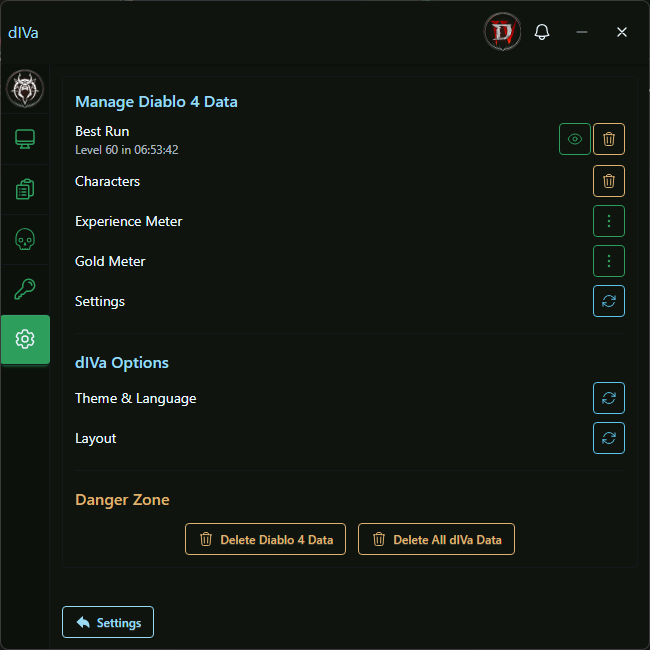
Manage Game Data
Shown when a game is detected (for example, Manage Diablo 4 Data).
Best Run
Displays your stored Best Run for the current game, including level and total time. If the record includes offline leveling segments, a note is shown.
Icon actions on the right:
- View: Opens a summary with GUID, character class and name, and level.
- Delete: Clears the Best Run record for this game (disabled when no record exists).
Characters
- Delete: Removes all character profiles and related local data for the current game, including leveling temp data.
Meters
For each available meter (Experience, Gold, and others depending on the game), open the row menu:
- Summary: Deletes summary and session aggregate data for that meter.
- History: Deletes stored meter session history for that meter.
- All: Deletes summary and history for that meter.
See also: Meter Log & History.
Settings
- Reset: Restores game-specific preferences to defaults (overlay options, feature toggles, and related game settings). Character, meter, and inventory data are not removed.
dIVa Options
Application-wide reset actions that do not delete gameplay data:
- Theme & Language: Resets theme, language, and In-Game Sidebar Overlay mode to defaults.
- Layout: Resets window layout and navigation to defaults.
Danger Zone
Destructive actions at the bottom of the screen:
- Delete {game} Data: Removes all stored data for the current game, including characters, meters, inventory, Best Run, and tier list data. Game preferences are kept. The app stays open.
- Delete All dIVa Data: Removes all dIVa data across every supported game and shuts down the application.
Confirmation
Reset actions show a Confirm Reset dialog. Delete actions show a Confirm Deletion dialog. Review the message carefully before confirming.