Key Bindings
Open from the Key Bindings action card on the main Settings screen.
dIVa supports a global Overwolf hotkey to bring dIVa to the front while in-game, without alt-tabbing through the taskbar.
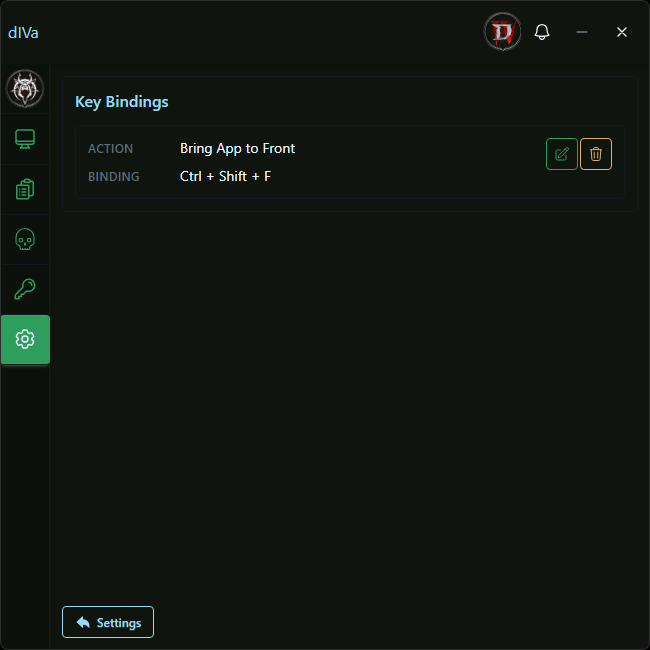
Key Bindings List
Each configurable hotkey appears as its own row with Action and Binding labels.
Icon actions on the right:
- Edit: Opens the input modal to capture a new key combination.
- Unassign: Removes the hotkey so no global shortcut is active (disabled when the binding is already unassigned).
Use Settings at the bottom of the screen to return to the main settings view.
If loading or saving fails, an error message appears on the Key Bindings screen.
Bring dIVa to Front
- Action: Brings the dIVa dashboard window to the front.
- Binding: Shows the hotkey currently assigned in Overwolf, or Unassigned when none is set.
Input Modal
The Set Key Binding dialog opens when you edit a hotkey. It shows the action name and the current binding, then captures a new combination from your keyboard.
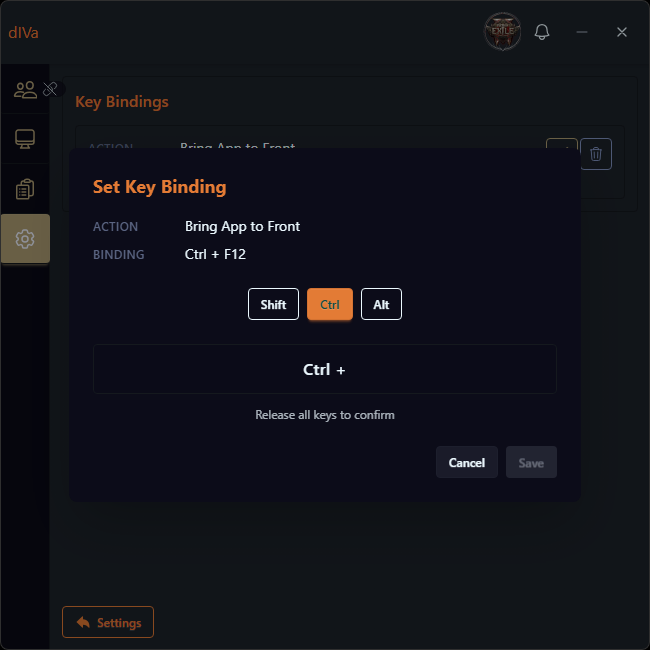
- Press the key combination you want (for example,
Ctrl + Shift + F). - Shift, Ctrl, and Alt buttons above the preview highlight while those modifiers are held.
- The preview area shows modifiers as you hold them (for example,
Ctrl +). As soon as you press a letter, number, or function key, the full combination is captured. - Click Save to apply the binding, press another combination to change it, or Cancel to discard changes. Press Esc to close without saving.
A valid binding must include a letter, number, or function key. Modifier-only combinations (for example, Ctrl alone) are not accepted.
Supported modifiers are Shift, Ctrl, and Alt. The Windows key is not supported.
If the combination is already registered elsewhere in Overwolf, the modal shows This key binding is already in use. Other save failures show an error message in the modal or on the main Key Bindings screen.
Changes apply through Overwolf’s hotkey system as soon as a binding is saved or unassigned.